
How to Build an Employee IT Onboarding and Offboarding Checklist
Every time someone joins or leaves your office, a chain of IT tasks has to happen in the right order. Create an account, assign a license, set up a phone, hand over a laptop, grant access to shared files. Then reverse all of it when that person moves on. If your business handles these tasks through managed IT services, each step is documented and repeatable. If you’re doing it ad hoc, from memory, with a different person handling it each time, steps get missed.
Missed steps are not just inconvenient. They’re a security problem. In 2024, CISA investigated a breach at a state government organization where attackers got in through a former employee’s account that still had administrative access and no multi-factor authentication. One orphaned account, one open door. (Source: CISA Advisory AA24-046A, February 15, 2024 https://www.cisa.gov/news-events/cybersecurity-advisories/aa24-046a)
This post is a working checklist you can use for every hire and every departure. It’s written for the office manager or business owner who doesn’t have a dedicated IT department but still needs a process that doesn’t depend on anyone’s memory.
What You Need Before the Employee’s First Day
The onboarding checklist starts before the new hire walks in. Give yourself at least a week of lead time, more if equipment needs to be ordered or shipped.
Gather these details from the hiring manager:
Full legal name and preferred display name. Job title and department. Start date and work location (on-site, remote, or hybrid). Which applications and shared resources the role requires. Who the employee reports to. Whether the role needs a phone extension, VPN access, or remote desktop access.
Decide on equipment:
Will the company issue a laptop or desktop, or will the employee use a personal device? If company-issued, does the device need to be purchased, pulled from inventory, or reassigned from a previous employee? If reassigned, the old device should be wiped and reimaged first. For guidance on doing that securely, see our post on how to safely dispose of old devices and protect your data.
Record the equipment before handoff:
Create a line item for every device: serial number, asset tag, make and model, assigned user, assigned date, condition, and warranty status. This log is what makes equipment recovery possible later. Without it, you’re relying on someone remembering who had what.
Plan the accounts:
Decide which Microsoft 365 license tier the employee needs and which shared resources (Teams channels, SharePoint sites, shared mailboxes, calendars, distribution lists) the role requires. If your business runs Microsoft 365, the license determines which applications the employee can access. Business Basic ($7/user/month as of July 2026) covers web and mobile apps. Business Standard ($14) adds desktop apps. Business Premium ($22) adds advanced security features including Conditional Access for MFA. (Source: Microsoft Licensing, February 16, 2026 https://www.microsoft.com/en-us/licensing/news/2026-m365-packaging-pricing-updates)
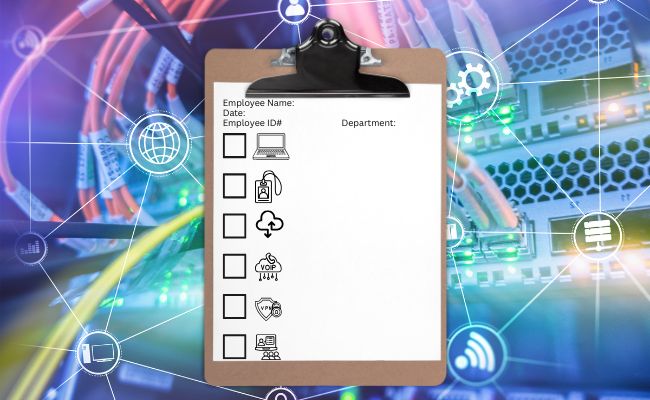
The IT Onboarding Checklist
 Create the Microsoft 365 account
In the Microsoft 365 Admin Center, go to Users, then Active Users, then Add a User. Enter the employee’s name, choose a username format that matches your convention, and assign the correct license. Expand the Apps section to include or exclude specific applications based on the role.
Do not reuse a former employee’s account for the new hire. Every person gets a separate identity. If the new employee needs to receive email at a former employee’s address, add that address as an alias or set up a shared mailbox. We’ll cover that in the offboarding section.
Deliver the temporary password through a secure channel. Not email. A phone call, an in-person handoff, or a password manager share works. The employee should be required to reset it at first sign-in.
(Source: Microsoft Learn, January 6, 2026 https://learn.microsoft.com/en-us/microsoft-365/admin/add-users/add-users?view=o365-worldwide)
Set up multi-factor authentication
In a 2024 survey of nearly 2,300 small and midsize businesses worldwide, 65% said they did not use MFA and had no plans to implement it. Fifty-eight percent were unaware of what MFA does for security. Meanwhile, a real-world Microsoft study found that MFA reduced account compromise risk by 99.2%. (Sources: Cyber Readiness Institute, November 12, 2024 https://cyberreadinessinstitute.org/news-and-events/new-study-underscores-slow-adoption-of-multifactor-authenification/ and Microsoft Digital Defense Report 2023, October 2023 https://www.microsoft.com/en-us/security/security-insider/threat-landscape/microsoft-digital-defense-report-2023)
If your tenant uses Security Defaults (available with any Entra ID Free plan), MFA is enforced automatically for all users. The new employee will be prompted to register an authenticator app during their first sign-in. No extra configuration needed.
If you’ve moved to Conditional Access policies (requires Business Premium or Entra ID P1), confirm the new user falls within the policy’s scope. Check Entra Admin Center, then Conditional Access, then Policies to verify.
Either way, confirm the employee has actually completed MFA registration. Don’t assume the prompt means the step was finished.
(Sources: Microsoft Learn, June 18, 2026 https://learn.microsoft.com/en-us/entra/fundamentals/security-defaults and December 11, 2025 https://learn.microsoft.com/en-us/microsoft-365/admin/security-and-compliance/set-up-multi-factor-authentication?view=o365-worldwide)
Grant access to shared files and resources
Add the employee to the correct Microsoft 365 groups, Teams channels, SharePoint sites, shared mailboxes, shared calendars, and distribution lists. If you’ve set up role-based groups (e.g., an “Accounting” group that automatically grants access to the accounting SharePoint site, shared mailbox, and Teams channel), adding the user to the group handles most of this in one step.
For access to folders containing confidential, financial, personnel, or customer data, get explicit approval from the employee’s supervisor before granting it. Document what was granted and when. That documentation matters at offboarding time.
If shared files and permissions feel like a weak spot in your setup, our post on SharePoint data breaches covers how access misconfigurations create real exposure.
Set up the phone
If the employee needs a VoIP extension, create a named user account in your phone system rather than sharing an admin or generic login. Record the assigned extension, direct number (if applicable), voicemail box, and whether the employee needs to be added to any call queues or auto-attendant menus.
For Microsoft Teams Phone, the assignment is at Teams Admin Center, then Users, then Manage Users, then select the user, then Account, then Assigned Phone Number. Set the emergency location for the employee’s primary work site. (Source: Microsoft Learn, May 28, 2026 https://learn.microsoft.com/en-us/microsoftteams/assign-change-or-remove-a-phone-number-for-a-user)
If your VoIP system supports SSO through Microsoft 365, enabling it means one less standalone password to manage. If it doesn’t, record that this account exists independently and will need separate deprovisioning when the employee leaves.
Configure VPN and remote access
If the role requires VPN or remote desktop access, add the employee to the appropriate security groups (e.g., VPN Users, Remote Desktop Users). Install any required certificates on their device. Confirm the connection works from outside the office before their first remote day.
Document which remote access methods were enabled. VPN, RDP, remote support tools, and cloud application portals each have their own credentials and session behavior. At offboarding, every one of them needs to be revoked individually. (Source: Microsoft Learn, July 22, 2025 https://learn.microsoft.com/en-us/windows-server/identity/ad-ds/manage-user-accounts-in-windows-server)
Hand over the equipment
Give the employee their device, peripherals, and any physical items (office keys, access card, parking pass). Have them sign an acknowledgment confirming what they received. This is especially important for remote employees receiving shipped equipment; a delivery confirmation is not the same as a signed equipment agreement.
Train on the basics
Before the employee’s first week is over, cover these:
How to contact support when something breaks. How to recognize and report phishing. (Our post on what happens when you click a phishing link is a useful reference to share with new hires.) Where to store files (cloud vs. local, which folders, what not to save to the desktop). The company’s password policy and how the password manager works. What to do if they suspect their account has been compromised.

The IT Offboarding Checklist
Offboarding is the security mirror of onboarding. Every account you created, every access point you opened, every device you handed over now needs to be reversed, documented, and verified. The stakes are higher on this side because timing matters. A new hire without email access on day one is an inconvenience. A former employee with active VPN credentials the week after termination is a breach waiting to happen.
Reset the password and block sign-in immediately
Do these two things first, in this order:
Reset the employee’s Microsoft 365 password to something random. Then block sign-in on the account. Then go to the user’s profile and select “Sign out of all sessions.”
Resetting the password is the faster control. Microsoft says blocking an account can take up to 24 hours to fully propagate, but the password reset takes effect at the next authentication attempt. The “Sign out of all sessions” action generally forces reauthentication within an hour, depending on token lifetime. (Sources: Microsoft Learn, January 5, 2026 https://learn.microsoft.com/en-us/microsoft-365/admin/add-users/remove-former-employee-step-1?view=o365-worldwide and June 19, 2026 https://learn.microsoft.com/en-us/entra/identity/users/users-revoke-access)
For involuntary terminations, complete the password reset and sign-in block before the termination conversation begins.
Don’t assume the account is fully dead yet
Blocking a Microsoft 365 account and revoking refresh tokens does not instantly kill every active session. Access tokens last up to an hour. Applications that issue their own session cookies (standalone SaaS apps, for example) may stay active until those cookies expire or the application processes the deprovisioning event, which Microsoft says runs on a 20 to 40 minute cycle. Any application where the employee created a direct login (separate username and password, not SSO) needs to be disabled at the provider. (Source: Microsoft Learn, June 19, 2026 https://learn.microsoft.com/en-us/entra/identity/users/users-revoke-access)
Preserve email the right way
You have two options: convert the mailbox to a shared mailbox, or set up email forwarding. They do different things.
A shared mailbox keeps all existing email and calendar data intact and lets authorized staff read incoming mail and respond from that address. It does not require a license as long as it stays under 50 GB. This is usually the better choice when the business needs to preserve correspondence history or have multiple people cover the departed employee’s responsibilities.
Email forwarding sends new messages to another address. It does not give the recipient the former employee’s old email or calendar history. If a customer sent an important message three months ago and you only set up forwarding, that message is in the old mailbox, not the new one.
To convert: go to the Microsoft 365 Admin Center, select the user, go to Mail, and choose “Convert to shared mailbox.” Do this while the user still has a license. After conversion, grant the appropriate staff access, then remove the license.
Do not delete the former employee’s user account while it anchors a shared mailbox or forwarding rule. Microsoft requires the underlying account to remain.
(Sources: Microsoft Learn, February 2, 2026 https://learn.microsoft.com/en-us/microsoft-365/admin/email/convert-user-mailbox-to-shared-mailbox?view=o365-worldwide and January 5, 2026 https://learn.microsoft.com/en-us/microsoft-365/admin/add-users/remove-former-employee-step-4?view=o365-worldwide)
Secure OneDrive files before deleting the account
The OneDrive retention clock does not start when you block sign-in or remove the license. It starts when the user account is deleted from Entra. The default retention period is 30 days. After that, the files move to a site-collection recycle bin for another 93 days, but at that point only a SharePoint administrator with PowerShell access can recover them. (Source: Microsoft Learn, June 23, 2026 https://learn.microsoft.com/en-us/sharepoint/retention-and-deletion)
Before deleting the account, transfer any files the business needs to another user’s OneDrive or a shared location. If the former employee had a manager on record in their profile, that manager will automatically receive access and a notification. If no manager is set, designate a secondary owner in advance.
You can extend the default retention period up to 3,650 days (ten years) through SharePoint Online settings. If your business has any legal hold, tax, or regulatory retention requirements, set this before the first departure, not after.
Remove VoIP and reassign the number
Disable the user’s phone account, remove them from call queues and auto-attendant menus, and either reassign the extension and number or release it. For Microsoft Teams Phone, go to the user’s Account settings and set the assigned phone number to None. For other VoIP providers, follow the provider’s deprovisioning steps separately, especially if the phone system is not linked through SSO.
Check voicemail. Transfer any recorded messages or greetings the business needs, then delete the voicemail box.
(Source: Microsoft Learn, May 28, 2026 https://learn.microsoft.com/en-us/microsoftteams/assign-change-or-remove-a-phone-number-for-a-user)
Revoke VPN and remote desktop access
Remove the user from VPN, Remote Desktop Users, and any privileged-access security groups. If your firewall or VPN appliance maintains its own user database, disable the account there too. Revoke any device certificates that were issued for remote access.
If the employee had Remote Desktop access to specific servers, verify the removal through Active Directory Users and Computers (user, Properties, Member Of) and confirm no local accounts on those machines bypass the directory. (Source: Microsoft Learn, February 12, 2026 https://learn.microsoft.com/en-us/troubleshoot/windows-server/remote/deny-user-permissions-to-logon-to-rd-session-host)
Rotate shared passwords
If the departing employee had access to any shared credentials (vendor portals, social media accounts, building alarm codes, shared admin logins, banking portals), change those passwords now. Not next week. This applies to every shared credential the employee knew, not just the ones in your password manager.
Collect equipment
For on-site employees, collect devices during or immediately after the departure meeting. Compare what you collect against the equipment log from onboarding.
For remote employees, send a prepaid shipping label with clear return instructions and a deadline. Follow up if the equipment isn’t returned. In a 2023 survey of 287 HR professionals, 71% reported that at least one departing employee had failed to return company equipment in the prior year, with an estimated average loss of $1,963 per incident. (Source: Capterra, January 31, 2023 https://www.capterra.com/resources/offboarding-best-practices/)
If a device cannot be recovered and it’s enrolled in Intune or another management platform, issue a remote wipe. That protects the data on the device, but it does not get the hardware back. Remote wipe and equipment recovery are two separate problems.
Remove and reclaim licenses
Once email is preserved (shared mailbox or forwarding), files are transferred, and the phone is reassigned, remove the Microsoft 365 license from the former employee’s account. The license is immediately available for reassignment.
At $7 to $22 per user per month depending on the plan, unused licenses add up. If your office typically handles a few departures per year without promptly reclaiming licenses, the annual waste can easily exceed several hundred dollars.
Run the final verification
Before marking the offboarding complete, walk the entire list one more time:
Is sign-in blocked? Is the password randomized? Are all sessions revoked? Is email preserved and accessible to the right people? Are OneDrive files transferred or retention configured? Is the phone extension removed or reassigned? Is VPN/RDP access revoked? Are shared passwords rotated? Is equipment returned or wiped? Is the license removed? Are physical access items (keys, badge, alarm code, parking) recovered or deactivated?
Someone other than the person who ran the offboarding should verify the list if possible. A second pair of eyes catches what familiarity misses.
Five Mistakes That Create Real Security Gaps
Reusing the former employee’s account for the replacement.
Every person needs a unique Microsoft 365 identity. The former employee’s mailbox data, sign-in history, and audit trail belong to that person. If you need the new hire to receive email at the old address, use an alias or shared mailbox. (Source: Microsoft Learn, January 6, 2026 https://learn.microsoft.com/en-us/microsoft-365/admin/add-users/add-users?view=o365-worldwide)
Deleting the account before converting the mailbox.
If the user account is deleted first, the mailbox goes with it. Convert to a shared mailbox while the license is still active, then remove the license, then evaluate when (or whether) to delete the account. (Source: Microsoft Learn, February 2, 2026 https://learn.microsoft.com/en-us/microsoft-365/admin/email/convert-user-mailbox-to-shared-mailbox?view=o365-worldwide)
Thinking email forwarding preserves old messages.
Forwarding only routes new incoming mail. The departed employee’s sent items, calendar, and message history stay in the original mailbox. If that’s what the business needs, a shared mailbox is the right tool. (Source: Microsoft Learn, January 5, 2026 https://learn.microsoft.com/en-us/microsoft-365/admin/add-users/remove-former-employee-step-4?view=o365-worldwide)
Assuming a remote wipe gets the laptop back.
A wipe erases the data. It does nothing about the physical device. Equipment recovery requires an asset log, return instructions, a deadline, follow-up, and sometimes a conversation with a lawyer. (Source: Microsoft Learn, April 30, 2026 https://learn.microsoft.com/en-us/intune/device-management/actions/wipe)
Treating license removal as account deletion.
Removing a Microsoft 365 license does not start the OneDrive retention clock. Deleting the Entra user account does. If you remove the license and assume the data is preserved indefinitely, you may be surprised when the account is eventually deleted and the 30-day countdown starts without warning. (Source: Microsoft Learn, June 23, 2026 https://learn.microsoft.com/en-us/sharepoint/retention-and-deletion)
Keep the Checklist Current
A checklist that doesn’t get updated after each use is a snapshot of how things worked the last time. Applications change. People change roles. New shared resources get created. A VPN gets replaced with a cloud gateway. The checklist has to reflect the current environment, not last quarter’s.
After every onboarding or offboarding, review whether any step needs to be added, removed, or reworded. Quarterly, audit for dormant accounts (users who haven’t signed in for 90 days), unused licenses still being billed, shared credentials that haven’t been rotated since the last departure, and equipment that’s assigned to someone who no longer works there. Our annual IT checklist covers additional items worth reviewing on a yearly cycle.
The complexity of this process is exactly why many offices without in-house IT work with a managed service provider to handle it. When account creation, access documentation, MFA enforcement, device management, and backup all live with one provider, nothing depends on someone remembering the right steps in the right order on a busy Tuesday. The process is the same every time because the system enforces it.
Get a Free Network Assessment
If your office doesn’t have a formal IT onboarding and offboarding process yet, or if you have one but suspect it has gaps, we can help you find them. Bristeeri Technologies offers a free network assessment that covers your current account management, security posture, and device inventory. We’ll tell you where you stand and what needs to change. No obligation, no pressure.
Call us at (803) 744-0440 or contact us online to schedule yours.